Bookmarks
Bookmarks are a convenient way to quickly open a Path of a Collection.
Create a bookmark
To create a new bookmark:
- In the
File Managertab, open the collection you are interested in and find your way to thePathyou are interested in bookmarking. Then click the bookmark icon.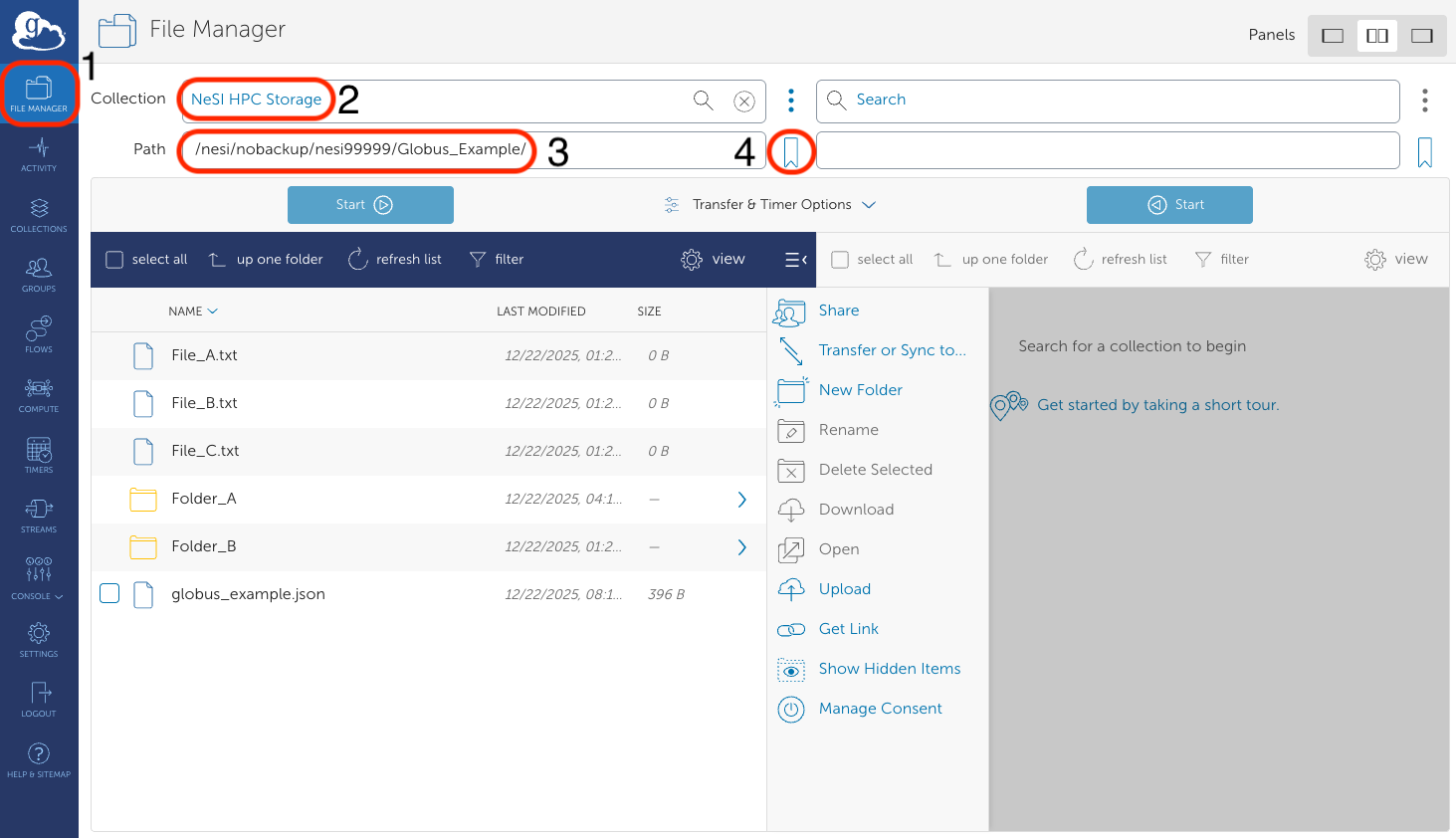
- Give a name to your bookmark and click
Create Bookmark.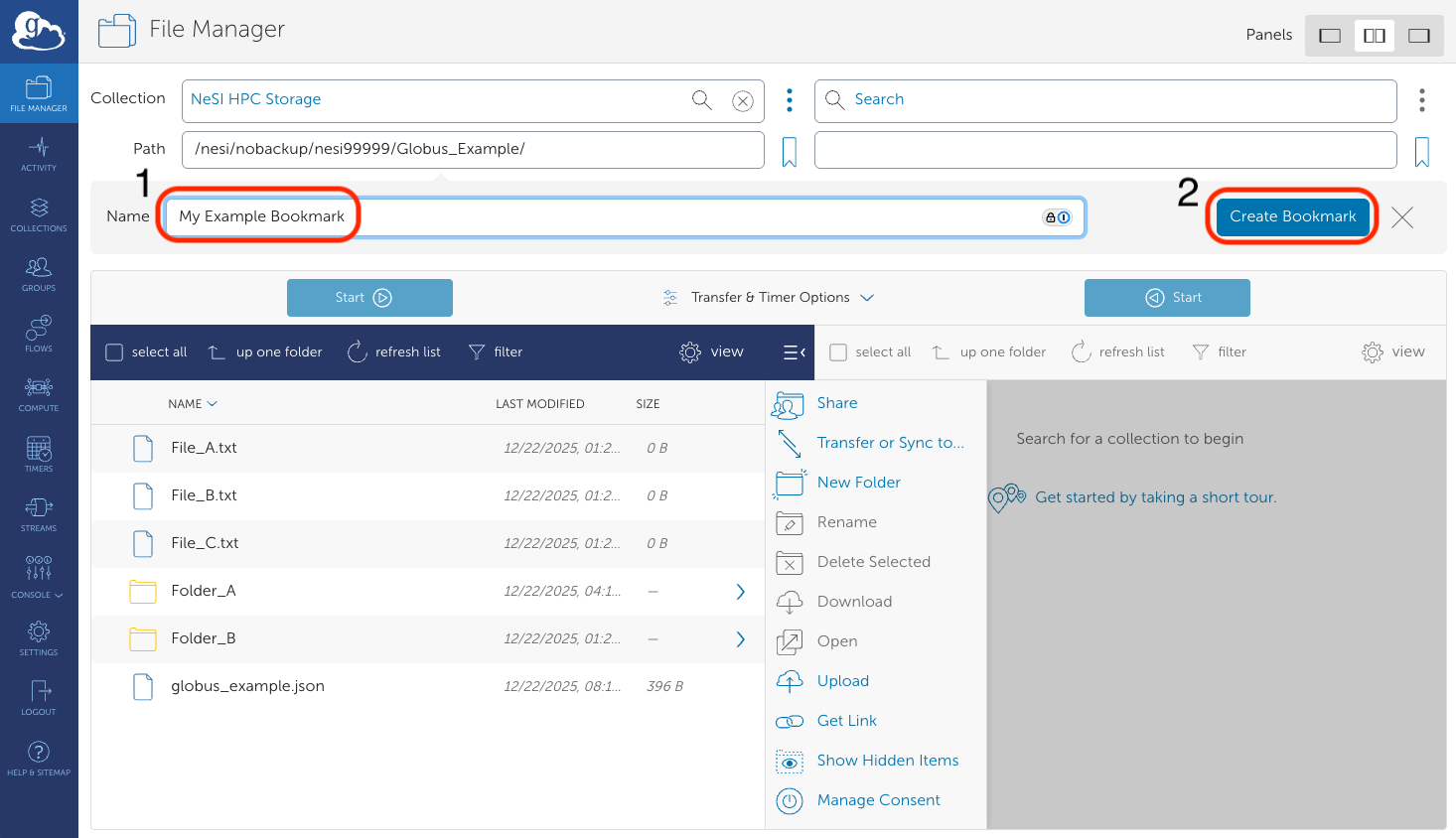
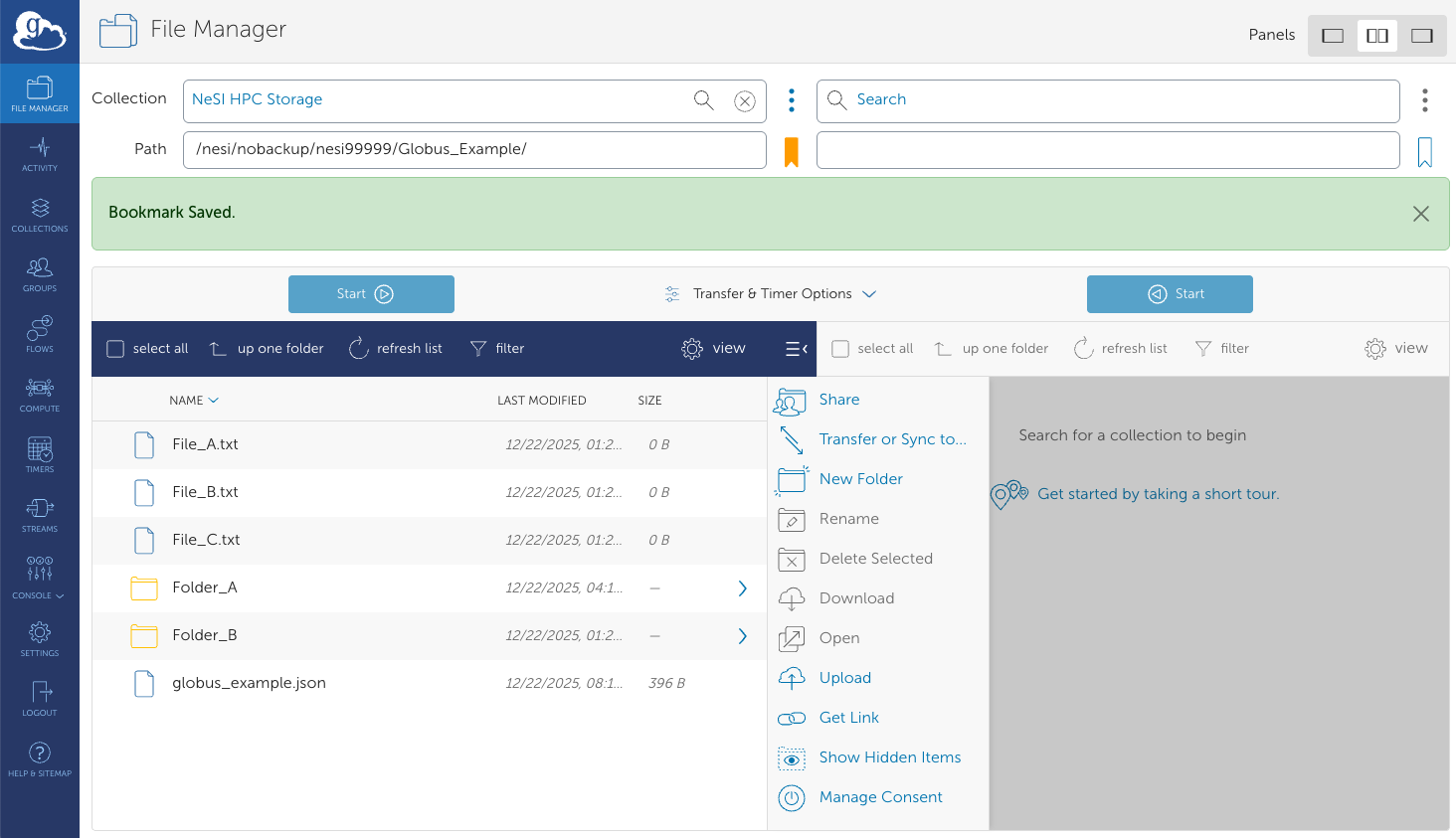
- This will create a bookmark, and make the bookmark icon go gold.
Select a bookmark
- Click on the
File Managertab, then click on theCollectionfield: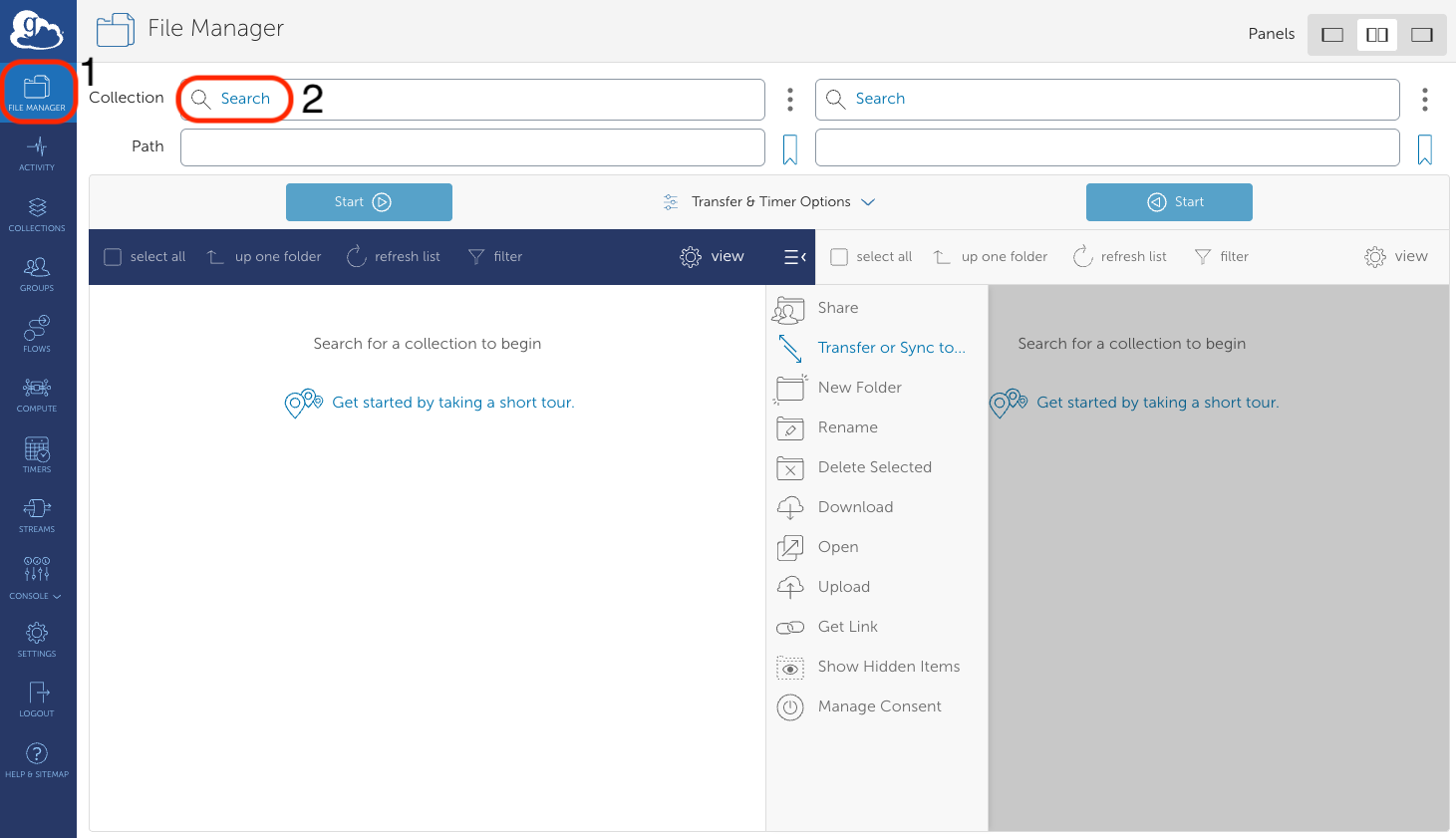
- Click on the
Bookmarkstab. Here, you will see all your bookmarks. Click on the one that is relevant to you: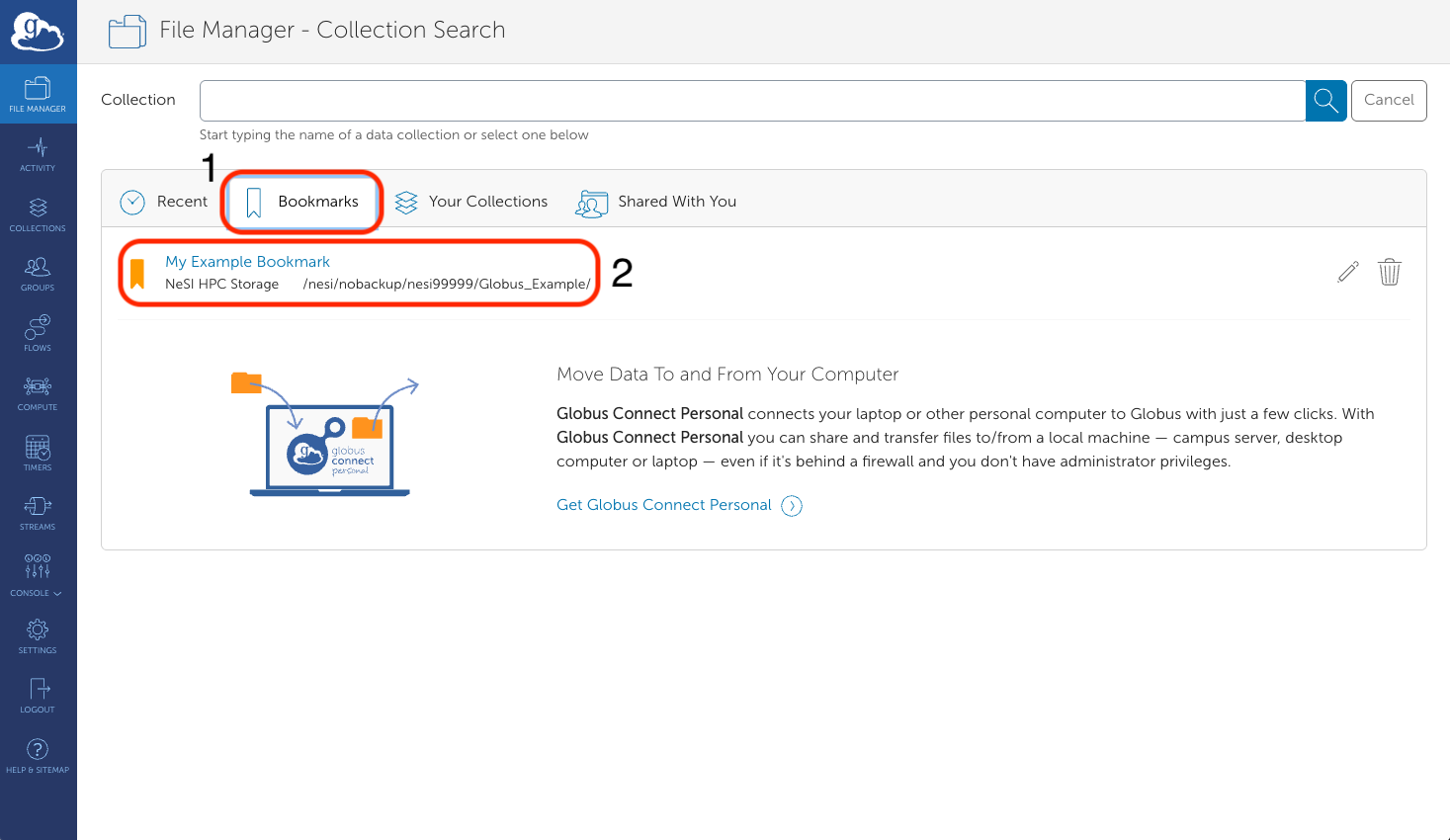
- You will then return to the
File Managerpage, but now with yourCollectionopen to the desiredPath.